

Maskfog
Step1: Preparation
Before integration, you need to complete the following preparations
1. Download and install Maskfog
2. Get the proxy IP, please refer to the tutorial: Dynamic Residential Proxy
Step2: Proxy Configuration
API Configuration
API configuration is authenticated through the IP whitelist. Please make sure that you have added the local IP to the whitelist before configuration
To add a whitelist, please refer to the tutorial:IP Whitelist Add Tutorial
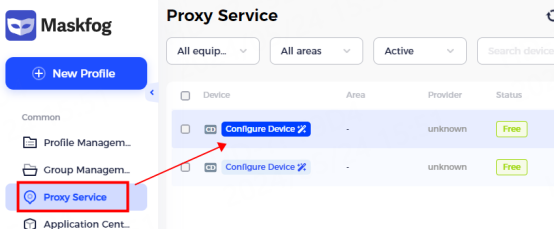
1. Click Proxy Service-Configure Device
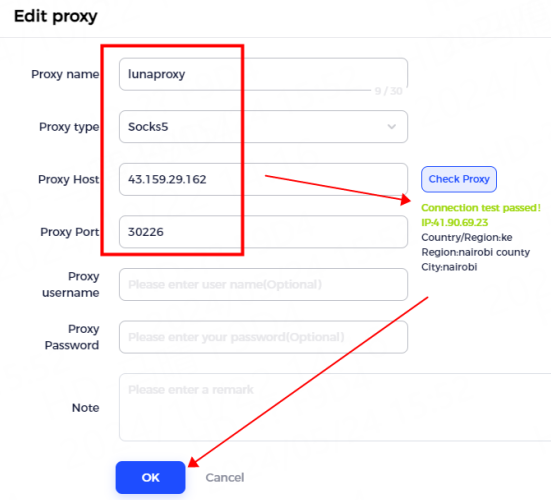
2. Enter the proxy information
① Enter the proxy name and select the proxy type according to the needs. Here, socks5 is used as an example
② Then paste the IP and port to the proxy host and proxy port position
③ Click Detect Proxy. After the detection is successful, click Confirm
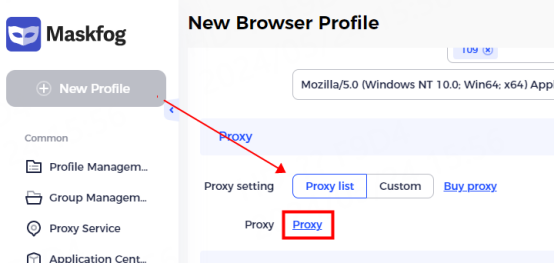
3. Click New Configuration, select Proxy List, and click Proxy
4. Bind the configured proxy server and close the window
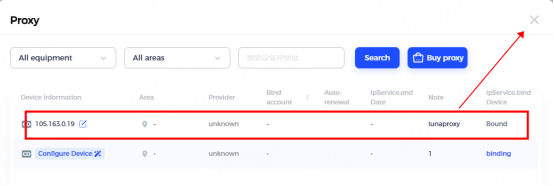
5. After the binding is successful, click OK
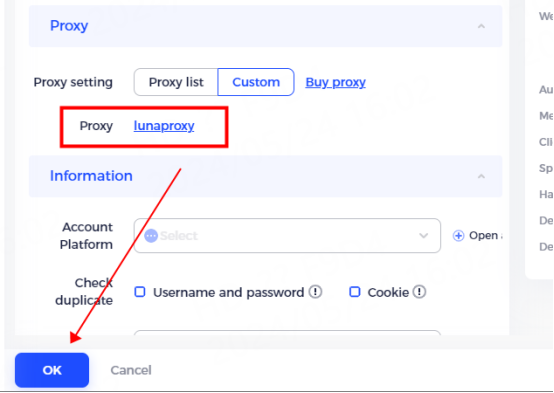
6. In the configuration You can see the successfully configured browser in the configuration management interface, click to open and use it

Account and password configuration
1. Click Proxy Service-Configure Device
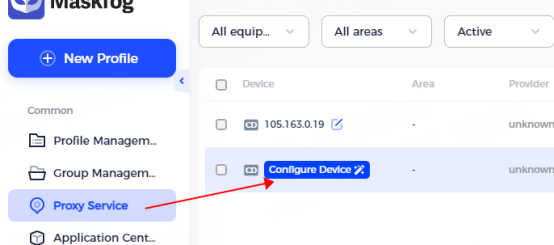
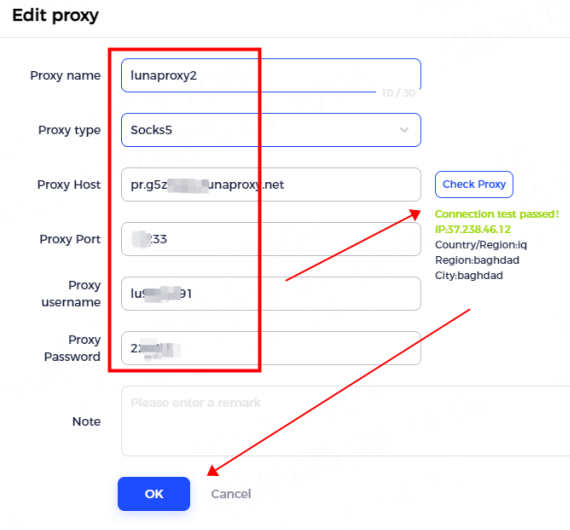
2. Enter proxy information
① Enter the proxy name and select the proxy type according to the needs. Here we take socks5 as an example
② Fill in the IP, port, account, and password in the corresponding position
③ Click Detect Proxy. After the detection is successful, click Confirm
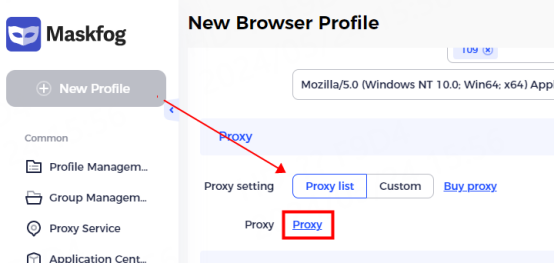
3. Click New Configuration, select Proxy List, and click Proxy
4. Bind the configured proxy server and close the window
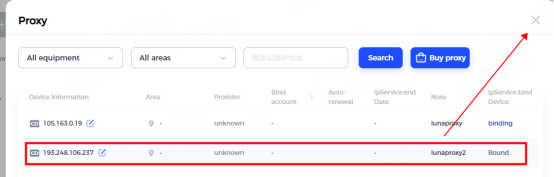
5. After the binding is successful, click OK
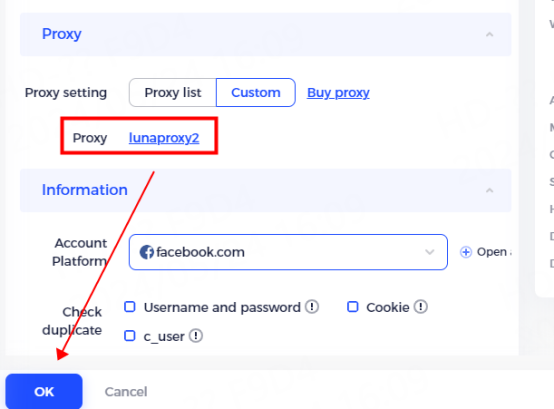
6. You can see the successfully configured browser in the configuration management interface, click to open and use it
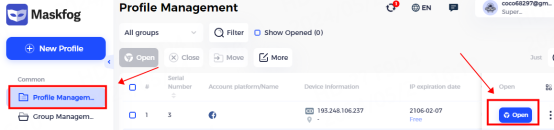
You have successfully integrated LunaProxy with Maskfog!
Connection failed
If the detection fails, please refer to our test tutorial: Proxy cannot connect
Last updated
Was this helpful?